
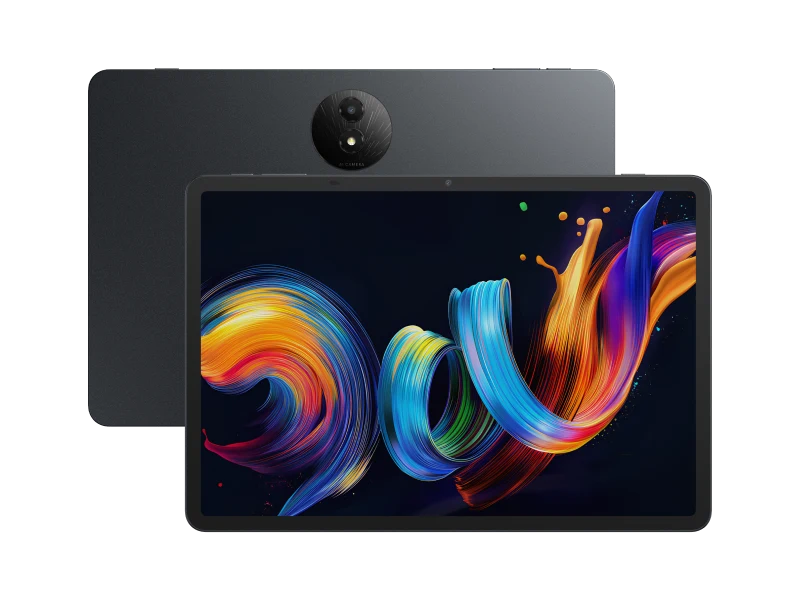
Setting up the Ramka's tablet
From a reset Android tablet to the Ramka on screen, with the TCL NXTPAPER 11 Plus (9469X,
Android 16, devices/tcl-9469x.yaml) as the worked example. Other makers name the menus
differently; what each setting is for is said next to it, so the same switch can be found
elsewhere. The reasons behind the settings and the Companion app's quirks:
the ramka field notes.
The paths for the screen lock, the WebView version, app pinning and the Companion app's own
settings were written down on the tested TCL. The others (system update, special app access,
developer options) are stock Android 16 paths, not checked on it. The adb line next to a setting
does the same from a computer, with USB debugging on (Settings → About tablet → tap Build
number seven times, then Settings → System → Developer options → USB debugging).
1. In Home Assistant, before the tablet
- A user for the tablet. Settings → People → Add person, Allow login on, Administrator
off, Can only log in from the local network on if the tablet never leaves home. The tablet
signs in as this user, never as you: the device and its entities get registered under it, and
kiosk-mode hides the header and sidebar for this user only. Its user name goes into the
kiosk_userinput. - kiosk-mode (optional): HACS → Frontend → kiosk-mode (NemesisRE). Without it the Ramka
shows Home Assistant's header and sidebar.
?disable_kmon a URL shows them again.
2. Android
| what | where on the TCL | why | adb instead |
|---|---|---|---|
| Android updates | Settings → System → System update | the WebView below needs a current Android | — |
| Android System WebView 123 or newer | Play Store → update; the version: Settings → Apps → See all apps → Android System WebView, at the bottom | the cards import JSON modules; older WebViews do not load them | adb shell dumpsys package com.google.android.webview | grep versionName |
| Screen lock: None | Settings → Security → Screen lock → None | the package wakes the screen; with a PIN or a swipe it stops on the lock screen | adb shell locksettings set-disabled true (only while no PIN is set) |
| NXTPAPER key: Color Paper | the NXTPAPER key at the right end of the top edge | Ink Paper turns photos and album art grey; Home Assistant cannot switch the mode | — |
| charge limit | none on this model; it stops at 80 % on the charger by itself | protects the battery on a tablet that never leaves the charger; on a tablet without a limit, use its battery-protection setting or a smart plug | — |
3. The Companion app
Install Home Assistant (io.homeassistant.companion.android) from the Play Store. 2026.8.4 or
newer if the Play Store offers it: 2026.6.5 can keep the screen on for good (field notes).
Permissions, Settings → Apps → Home Assistant (the app asks for the first two while it is set up; if they were refused, they are under Advanced or Settings → Apps → Special app access):
| permission | value | without it | adb instead |
|---|---|---|---|
| Modify system settings | allowed | brightness and screen-timeout commands are dropped without a word | adb shell appops set io.homeassistant.companion.android WRITE_SETTINGS allow |
| Display over other apps | allowed | the app cannot come to the front after a wake; app_importance reads cached | adb shell appops set io.homeassistant.companion.android SYSTEM_ALERT_WINDOW allow |
| Battery → Unrestricted (battery optimisation off) | unrestricted | Android stops the app in the background and the commands stop arriving | adb shell dumpsys deviceidle whitelist +io.homeassistant.companion.android |
| Notifications | allowed | — | — |
| Location | may be denied | — | — |
Sign in to your Home Assistant's local URL as the tablet's user (section 1).
App settings, in the app: Settings → Companion app:
| setting | value | why |
|---|---|---|
| Device name | short, lower case, e.g. ramka | becomes notify.mobile_app_<slug> and sensor.<slug>_*, which go into the tablet_device input; set it before the first sign-in finishes, or rename the entities afterwards |
| Keep screen on | off | with it on the screen never sleeps; the package keeps the screen awake through Android's screen timeout instead |
| Fullscreen | on | hides Android's status and navigation bars |
| Screen orientation | Landscape | the tested layout is landscape |
| Always show first view on app start | on | after Android kills the app it comes back on the Ramka, not on the last page |
| Persistent connection | Always | commands arrive over the local websocket, not Firebase: no internet dependency, no delay |
| Manage sensors | on: light_sensor, battery_level, app_importance, charger_type, battery_temperature, is_charging; for your own view also interactive, battery_state, battery_health | the package reads the first six; a disabled sensor is missing from Home Assistant |
| Sensor update frequency | Fast always | once a minute; the slower settings drop to 15 minutes and brightness lags behind the room |
Profile, in the app as the tablet's user (the person icon at the bottom of the sidebar):
Dashboard = the Ramka's (dashboard_path, dashboard-ramka by default), Language and Time
format as the dashboard's language, Theme dark. Once kiosk-mode is active the profile page is
hidden: set these first, or open the profile with ?disable_km.
App pinning: leave it off. Pinning (Settings → Security → App pinning) keeps a guest inside
the app, but it also blocks the way to unstick a screen that will not sleep (command_launch_app
to Android's Settings and back, field notes). The Ramka's Exit button on the controls is its way out
instead: a tap opens exit_left, a long press reloads the Ramka with kiosk-mode off.
4. Measure, render, check
domosenso probe <target> --install, open<HA URL>/domosenso-probe/0in the Companion app with the tablet in its final orientation,domosenso probe <target> --read, thendomosenso probe <target> --remove. Theviewportgoes into thescreeninput;webviewunder 123 orjson-modules nomeans the cards will not load;user adminmeans the app is signed in as an administrator (section 1).- Fill the inputs (
tablet_device,screen,kiosk_user, the radar), render, deploy to staging, look at the shots, then production. Pressinput_button.<prefix>_reloadonce the tablet shows the dashboard. - With nobody near the radar for
off_delay_sthe screen goes dark; walking in wakes it on the ambient page.sensor.<slug>_app_importancereadsforegroundwhile the screen is on andtop_sleepingwhile it sleeps.
| symptom | look at |
|---|---|
| the screen never sleeps | Keep screen on (section 3); on Companion 2026.6.5 see the field notes |
| it wakes onto the lock screen | Screen lock (section 2) |
| brightness never changes, the screen never times out | Modify system settings |
it wakes on the launcher or another app, app_importance = cached | Display over other apps |
| commands arrive late or not at all after a while | battery Unrestricted, Persistent connection |
a sensor the package needs is unavailable or missing | Manage sensors |
| the cards stay empty or show "Custom element doesn't exist" | the WebView version |
| English words on a Polish (or German) dashboard | the profile's language |
A separate dashboard application
From Ramka 0.14.0, set the installation input tablet_wake_package: com.domosenso.frame when
Frame is the dashboard application. The default remains Home Assistant Companion. Keep Companion
installed, signed in and allowed to deliver its existing screen/launch notification commands.
Install and pair Frame separately before selecting it. Render, stage and review the deployment
plan, then verify a real radar wake restores the chosen app. Do not enable competing native radar
control when HA already owns sleep and brightness. This does not change any live HA preferences.
Home Assistant on the tablet
For an on-device HA Server pilot, Frame and Companion remain separate apps. The optional
official minimal Companion
uses package io.homeassistant.companion.android.minimal. Register its local server at
http://127.0.0.1:8123 with a regular kiosk account. Enable mobile_app in local HA.
An existing full Companion can retain its NAS registration while the minimal client serves
local HA. During isolation, disable the old Android package locally. Removing a server inside
Companion can revoke its session on that HA.
Name the new device, for example, Frame local, then confirm the generated notify service
and sensor slugs. Put the actual values in this installation's Ramka inputs and render again.
For example:
tablet_device:
  notify: notify.mobile_app_frame_local
  sensors: frame_local
tablet_wake_package: com.domosenso.frame
Use the installed Frame package for tablet_wake_package, including a pilot suffix when
applicable. Keep Frame as the default Home app and save the classic HA dashboard selection.
Local HA must receive the radar states directly. Its generated screen scripts then own sleep,
brightness and the launch of Frame.
In the minimal client's server settings, set Persistent connection to Always and confirm Local Push is connected. Apply the permissions and battery settings from section 3. Under Manage sensors, enable the listed sensors and enable Interactive and Screen off timeout for verification. Confirm that local HA receives their updates. Match the account's display name, language, time format, backend-selected theme and default dashboard to the rendered kiosk configuration.
After continuous radar absence for the configured delay, verify an actual screen-off report. Approach the tablet, verify radar presence and screen-on, then observe a reading page followed by a decoded photo without touching the screen. Repeat after reboot and with USB disconnected. Test LAN Wi-Fi with WAN unavailable separately from switching Wi-Fi off. Companion's persistent connection can depend on Android reporting an active network even for a loopback server. Local Push requirements